
Coming soon to Windows
Add arrows, circles and boxes to point at things
A circle around the spot that matters, or an arrow pointing at it, so viewers see exactly where to look, moving in and out like any clip.
Free
- 5 shapesbox, frame, circle, arrow and line, ready to place
- Keyframesa shape moves, grows or fades in like any clip
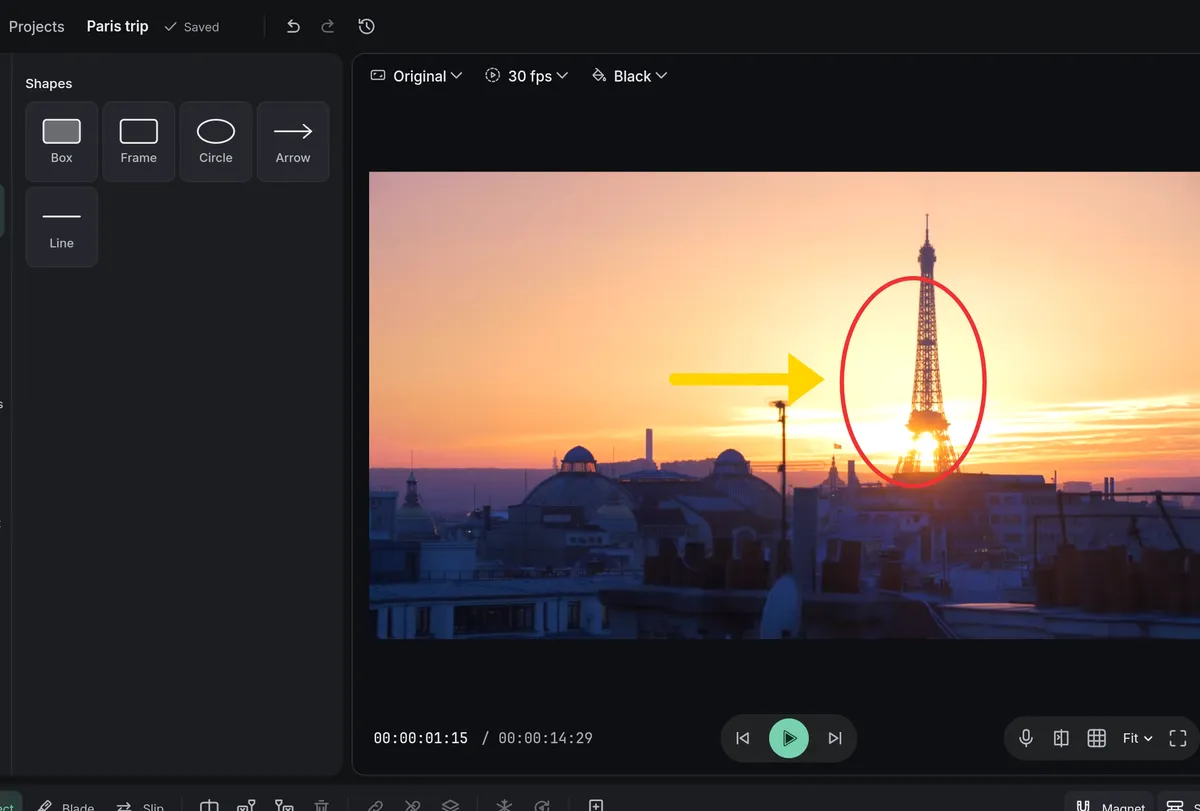
How to do it in Eigami
In the library’s Shapes tab, click Box, Frame, Circle, Arrow or Line.
It appears at the playhead, on a new track on top: drag it on the viewer to the spot.
In the inspector’s Shape tab, set the Fill and Outline colors; an arrow or a line has a Line instead.
How it works
Size and kind
Set its size, and a box’s Corner radius, in the inspector’s Shape tab, and switch one kind into another from the Shape menu.
Turned to point
An arrow points right as it is added. Turn it with the knob above its frame on the viewer; turns snap to right angles.
Moving like any clip
A shape takes keyframes, In and Out animations and transitions: a circle can pop in around a button, an arrow can slide towards it.
What it needs
- Nothing to download: the shapes come with the app.
What it doesn’t do
- An arrow is straight, with one head: there are no curved or double-headed arrows.
Questions
Can I add a speech bubble?
Yes. Click Speech bubble in the library’s Text tab, under Basic, then double-click it on the viewer and type your words.
Can a circle or an arrow follow something that moves?
Yes, by hand: add keyframes to its position in the Video tab. It doesn’t track the movement by itself.
Can I see through a box?
Yes. Box comes half see-through; lower its Opacity, or choose None for its Fill to keep only an outline.
Coming soon to Windows. Eigami is a free desktop video editor with no watermark. Pro, paid once, adds 4K exports and the tools that do the work for you, with AI on your computer. Free, with Pro paid once, through the Microsoft Store for Windows 10 and 11. The app never asks you to sign in. See what it does
Updated