
Coming soon to Windows
Edit a video by its text
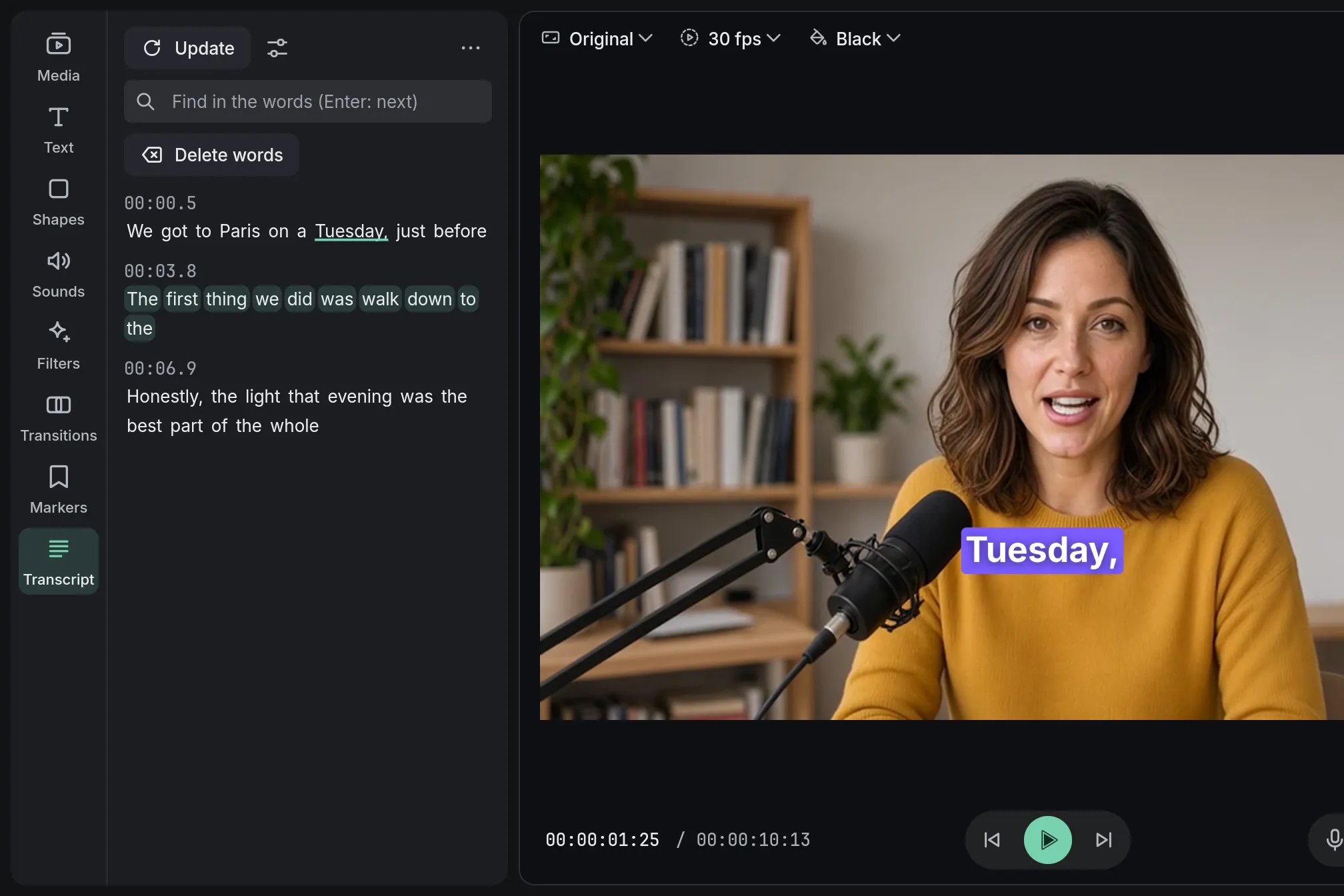
Everything said on your timeline as text you can read and search. Delete a word or a whole sentence from the text and that part leaves the video, the rest closing up.
ProReading the transcript is free; cutting the video by it needs Pro. See pricing
- ≈ 100languages it can transcribe, or let it detect the one spoken
- Captionsmade from the words, following every word you delete
How to do it in Eigami
Open the library’s Transcript tab and press Transcribe.
Read along as it plays, or click a word to move the playhead there.
Select what goes: click the first word and Shift+click the last.
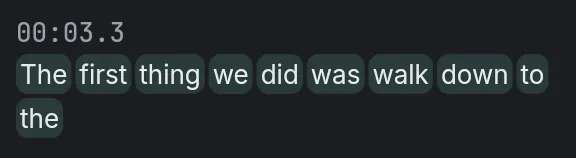
Press Delete: the words leave the video, and the rest closes up.
How it works
The text of the timeline
The words always match the timeline: trim, move, split or undo, and they follow. Muted tracks are left out.
Transcribed once
Only the parts the timeline plays are transcribed, and the text is kept: reopen the project and it is still there.
Captions that follow the words
Create captions, in the tab’s More menu, makes captions from the words. Delete words afterwards and the captions follow.
What it needs
- A download the first time, shared with auto captions and every project: Fast: 61 MB, Balanced: 191 MB, Best: 575 MB.
- A processor with AVX2: most made since 2013 have it.
What it doesn’t do
- It cuts by words, not by meaning: you choose what goes. It doesn’t find a sentence said twice or pick the better take.
- It finds only the filler words that appear in the transcript, and they are often left out of it.
- Words can be cut on the main track, or in a recording with nothing else at the same time on the timeline. Elsewhere they are grayed out: a cut there would slide against what plays beside it.
- Captions made from the transcript update when you delete words, while the project stays open. Captions made another way stay as they are.
Questions
Is my video uploaded?
No. The speech is transcribed on your computer; nothing is sent.
Can I get the deleted words back?
Yes. Deleting words is one step; Ctrl+Z puts them back.
Can I search the words?
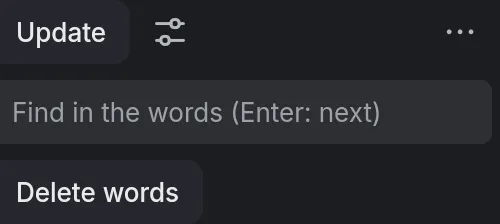
Yes. Type a word or a phrase in “Find in the words”; Enter goes to the next one.
How do I take out the “um”s?
Choose Filler words in the tab’s More menu: each one found is struck through. Click one to keep it; Remove takes the rest out.
Do I have to transcribe again after every edit?
No. The text follows every trim, move and split. After adding clips, Update transcribes only those.
Coming soon to Windows. Eigami is a free desktop video editor with no watermark. Pro, paid once, adds 4K exports and the tools that do the work for you, with AI on your computer. Free, with Pro paid once, through the Microsoft Store for Windows 10 and 11. The app never asks you to sign in. See what it does
Updated