
Coming soon to Windows
Split a long video into its scenes, automatically
A long recording comes apart into its scenes: every shot change is found and marked for you to check, then the clip is cut at all of them at once.
ProFinding the scenes is free; cutting at them needs Pro. See pricing
- With its soundthe clip’s extracted sound is cut at the same places
- Not at a flashcamera flashes, lightning and moving cameras aren’t taken for cuts
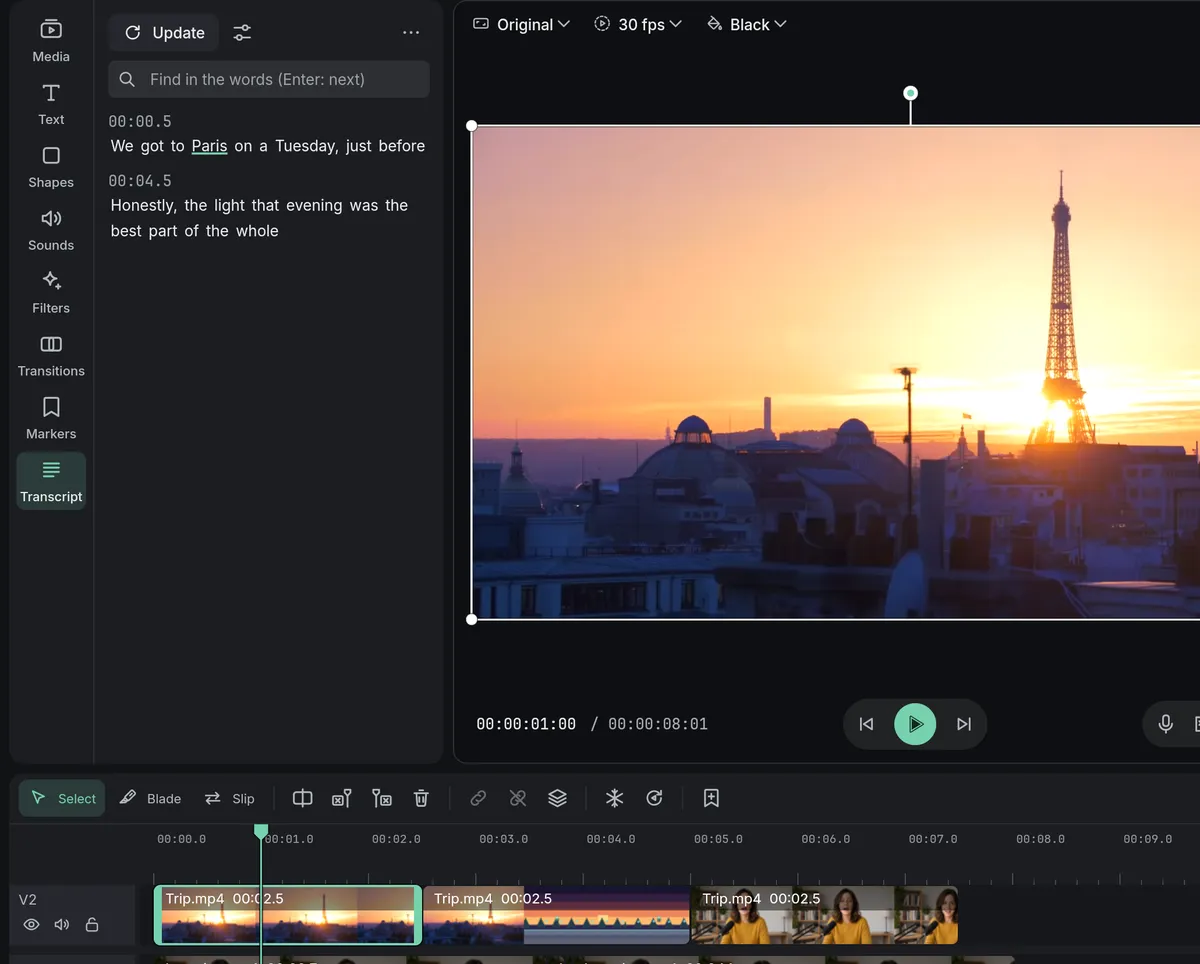
How to do it in Eigami
Select the video on the timeline.
Right-click it and choose Picture, then Detect scenes.
Check the purple markers it leaves on the clip.
Press Cut at markers in the message to split the clip at every marker.
How it works
From marker to marker
Shift+Down and Shift+Up take the playhead from one purple marker to the next. Drag a marker to move it, or delete it.
Your markers count too
Cut at markers also cuts at the markers you added with M, so you can add a cut it missed by hand.
Each step undoes at once
Ctrl+Z takes back all the markers, or all the cuts, in one go, so trying it on a clip is never a risk.
What it needs
- Nothing to download: it runs on your computer.
What it doesn’t do
- Fades and dissolves aren’t found: the picture changes too slowly to stand out. Add a marker there by hand.
- There is no sensitivity to set.
Questions
Is my video uploaded?
No. The shot changes are found on your computer, and nothing is sent anywhere.
Does it work on a long recording?
Yes. A message shows how far along it is, and running it again on the same file doesn’t start over.
What if it marks a place that isn’t a cut?
Right-click that purple marker and choose Delete marker before you cut.
Coming soon to Windows. Eigami is a free desktop video editor with no watermark. Pro, paid once, adds 4K exports and the tools that do the work for you, with AI on your computer. Free, with Pro paid once, through the Microsoft Store for Windows 10 and 11. The app never asks you to sign in. See what it does
Updated