
Coming soon to Windows
Add a voice to your video: text read aloud, or your own
Have a text on your timeline read aloud by a voice made on your computer, and placed right under it. Or record your own voiceover instead.
Free + ProA text read aloud is free to try and needs Pro to export; recording your own voiceover is free. See pricing
- 6English voices, American and British, women and men
- Record a voiceoverwhile the timeline plays, take after take, each on its own track
How to do it in Eigami
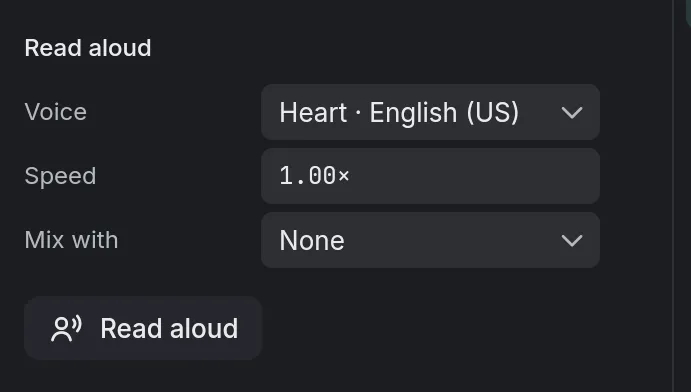
Select a text on the timeline and open the Text tab’s Voice section; the first time, press Download the voices.
Choose a Voice and a Speed.
Press Read aloud: the voice lands on an audio track under the text.
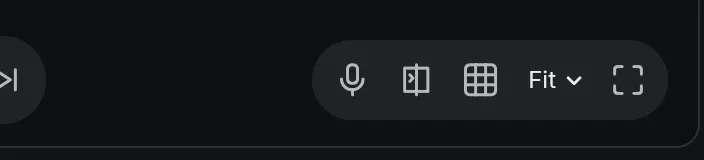
For your own voice, press Record a voiceover beside the viewer’s controls; Space ends the take.
How it works
A voice of your own making
Mix with blends in a second voice by its Share. The reading is a sound clip, so volume, fades and Voice changer work on it.
The voice stays with its text
Text and voice are grouped, so they move together, and words lit one by one keep time with the voice.
Recording a voiceover
A count of three comes first, then the viewer shows the time and level as you record. Escape throws the take away.
What it needs
- For reading aloud, the voices, downloaded once the first time and shared by every project: 112 MB.
- For a voiceover, a microphone; headphones keep the timeline’s sound out of it.
What it doesn’t do
- The voices speak English, with an American or a British accent.
- It can’t speak in your voice or anyone else’s: no voice cloning, only the app’s voices.
Questions
Is my text sent anywhere?
No. The voice is made on your computer, and nothing is sent.
Can I change the words after?
Yes. Edit the text and press Read again: the new reading replaces the old one, keeping its volume and effects.
Coming soon to Windows. Eigami is a free desktop video editor with no watermark. Pro, paid once, adds 4K exports and the tools that do the work for you, with AI on your computer. Free, with Pro paid once, through the Microsoft Store for Windows 10 and 11. The app never asks you to sign in. See what it does
Updated