
Coming soon to Windows
Blur the faces in a video, automatically
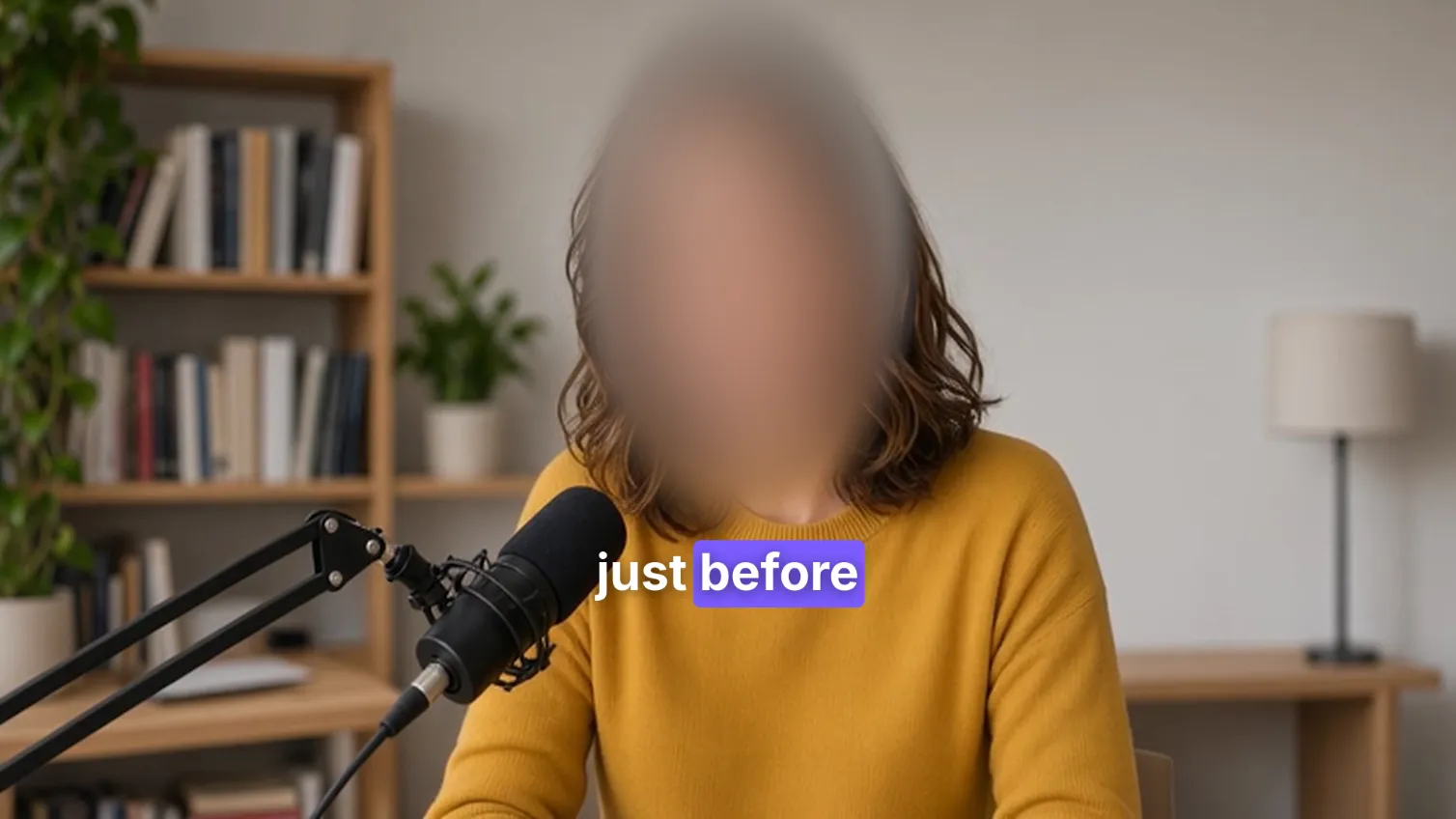
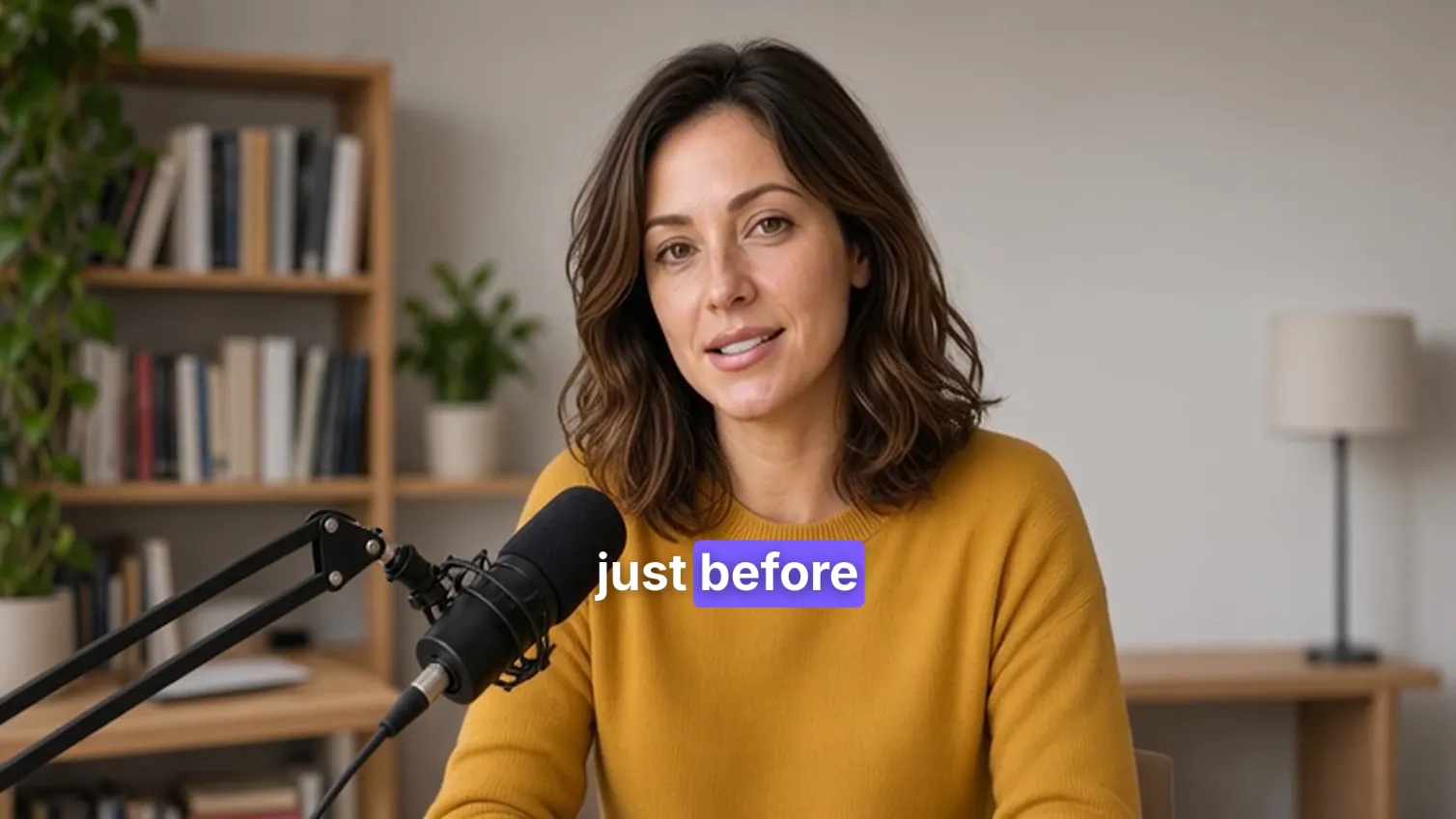
Every face in a clip blurred or pixelated, and followed as it moves through the shot. Anyone you choose stays visible; everyone else stays hidden, in the preview and the export.
ProTry it on your own clips for free; exporting it needs Pro. See pricing
- Faces · license plates · screensfaces found for you; draw a box over anything else to have it tracked
- Blur · Pixelateand a strength you choose
How to do it in Eigami
Select a video or a photo and open the Video tab’s Privacy section.
Turn on Hide faces: every face found is hidden.
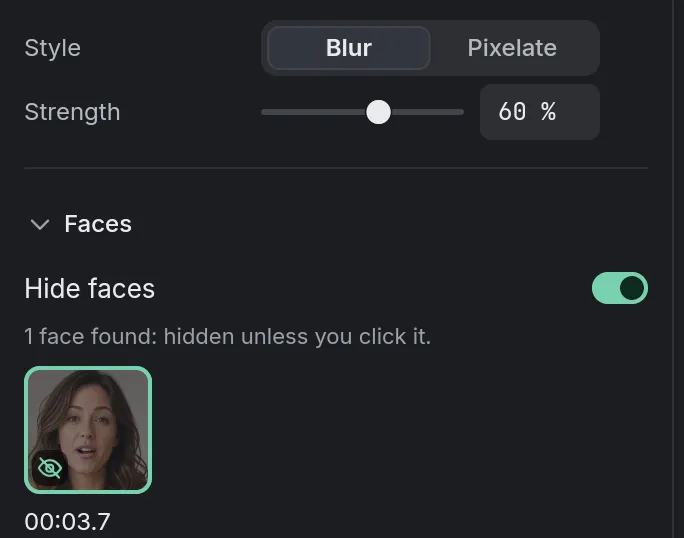
Choose the Style and Strength, and click a face in the list to leave it visible.
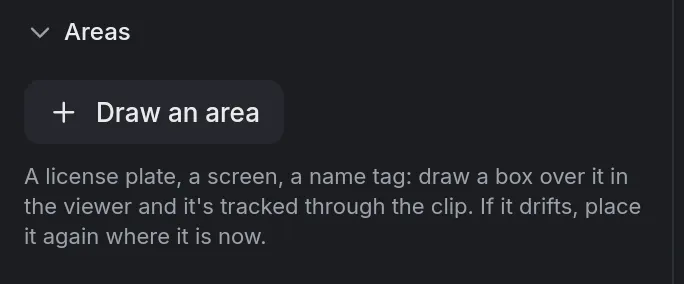
To hide a license plate or a screen, click Draw an area and drag a box over it.
How it works
Followed as it moves
Each face stays hidden as it moves, the oval covering hair, ears and chin. A face lost for a moment keeps your choice.
License plates and screens too
A drawn area is tracked forward and back through the clip. If it drifts, place it again where the object is now.
The export hides what the preview hides
Preview and export hide the same things. If an export can’t find the faces or track an area, it stops and says why.
What it needs
- Nothing to download: it comes with the app.
What it doesn’t do
- A face in profile, turned away, very small or behind a hand may be missed: check the result before you export.
- The first time, the whole file is looked at in the background, and a long recording takes a while: until a face is found, the preview shows it as filmed.
Questions
Is my video uploaded?
No. The faces are found and tracked on your computer; nothing is sent.
Can I leave one person visible?
Yes. Click their face in the list of faces found; click it again to hide it.
Does it work on photos?
Yes. Every face found on a photo is hidden, and areas can be drawn on it as on a video.
Coming soon to Windows. Eigami is a free desktop video editor with no watermark. Pro, paid once, adds 4K exports and the tools that do the work for you, with AI on your computer. Free, with Pro paid once, through the Microsoft Store for Windows 10 and 11. The app never asks you to sign in. See what it does
Updated