
Coming soon to Windows
Crop a video and change its size or shape
Your video in the shape it’s for, from 16:9 to 9:16, 1:1 or your own size, with each clip cropped and sized to show just what matters.
Free + ProCropping, sizing and the canvas format are free; Zoom and a version in another format need Pro to export. See pricing
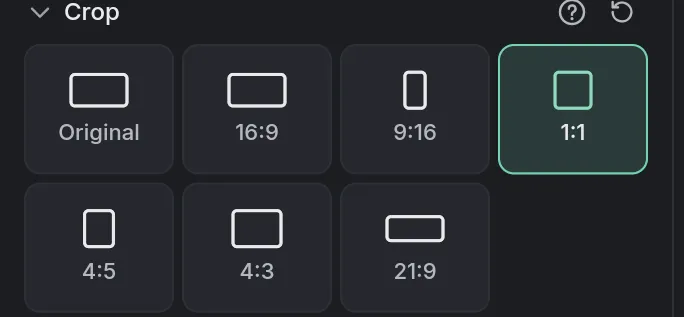
- 7crop shapes: Original, 16:9, 9:16, 1:1, 4:5, 4:3 and 21:9, or drag the four sides on the viewer
- Any sizefor the whole video: the usual formats, or a ratio or exact pixels of your own
How to do it in Eigami
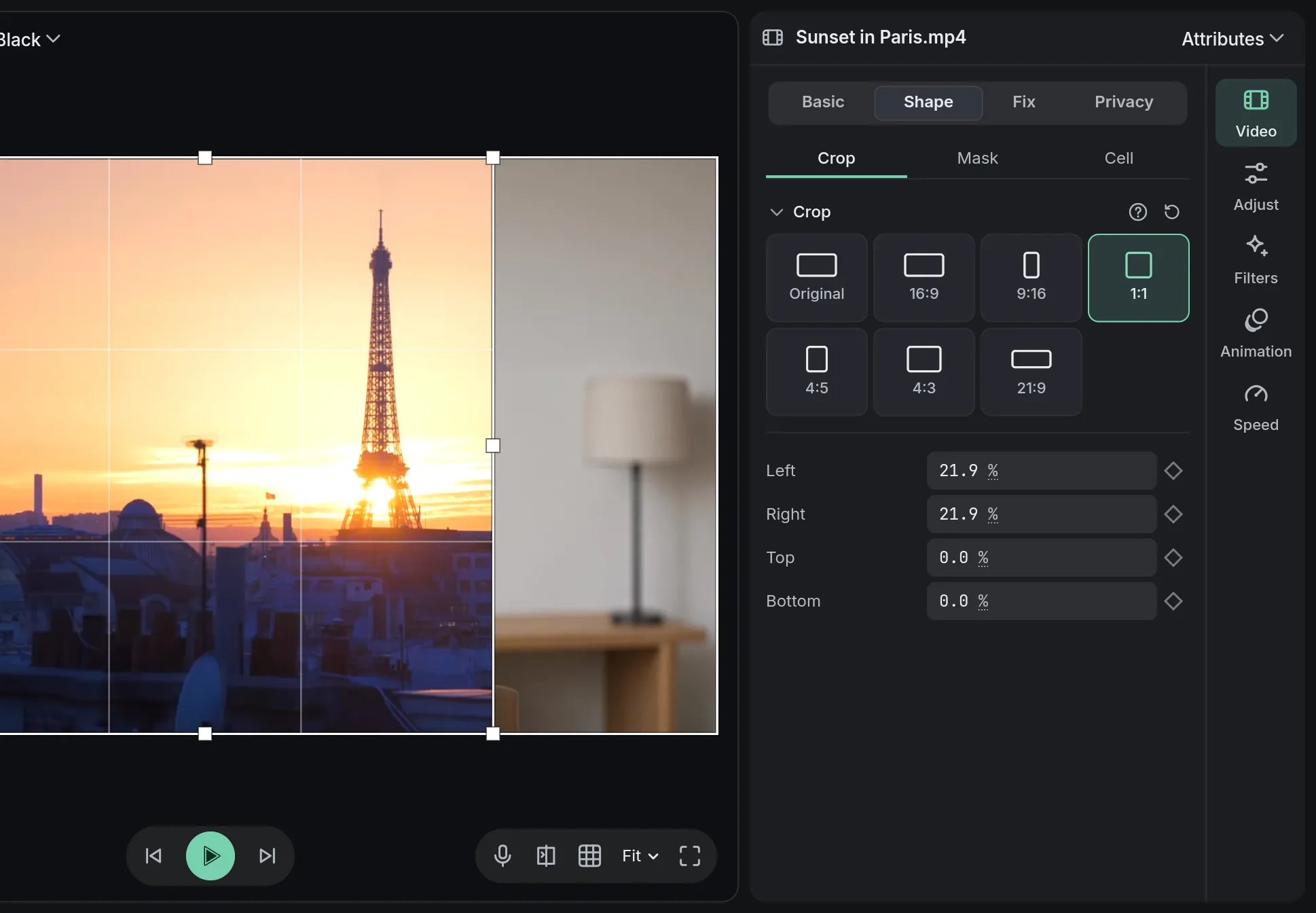
Choose the video’s shape in the Canvas format menu, in the viewer’s header.
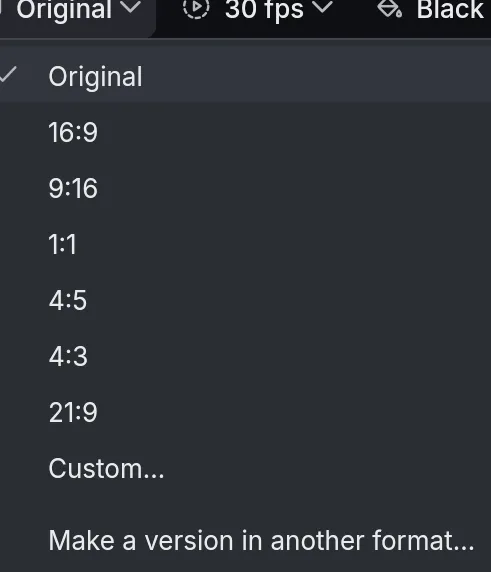
Select a clip, open the Video tab’s Shape section and pick a crop shape, such as 1:1.
Drag the handles on the viewer to adjust the crop, or drag inside it to move it.
To cover the canvas, press Fill the frame in the Basic section’s Position and size.
How it works
The picture stays put
The part you keep stays in its place and size; what you cut becomes transparent, so the tracks below show through.
Fit, fill or pixel for pixel
Fit in the frame shows the whole picture; Fill the frame covers the canvas, cutting the longer side; Original size (1:1) keeps logos sharp.
Every value can move
Each crop side, the scale and the position have a keyframe diamond to animate; the crop goes with Position and size when you paste attributes.
What it needs
- Nothing to download: cropping, sizing and zooming are part of the editor.
What it doesn’t do
- The zoom points towards one of nine fixed points, not anywhere you click; its position keyframes can be dragged on the viewer afterwards.
- Changing the canvas format changes this project. To keep your edit and also post it as a 9:16 short, make a version in another format instead.
Questions
What is the difference between cropping and the canvas format?
The canvas format is the shape of the whole video you export; a crop cuts the sides of one clip inside it.
How do I set a size of my own?
Choose Custom… in the Canvas format menu and type a ratio or an exact size in pixels.
Can I give sizes in pixels?
Yes. Click a size’s unit to switch between % and px, or set it in Preferences.
Can I zoom in on part of the picture?
Yes. On the Animation tab’s Zoom page, set the Amount and the point it zooms Towards, then press Zoom in, Zoom out or Punch in. Zoom needs Pro to export.
Is my video file changed?
No. The crop, the size and the zoom are kept in the project, and Ctrl+Z undoes each change.
Coming soon to Windows. Eigami is a free desktop video editor with no watermark. Pro, paid once, adds 4K exports and the tools that do the work for you, with AI on your computer. Free, with Pro paid once, through the Microsoft Store for Windows 10 and 11. The app never asks you to sign in. See what it does
Updated