
Coming soon to Windows
Color correct and grade a video
Each clip the way you want it: brighter or darker, warmer or cooler, with richer colors and a graded look, and clips shot apart made to match. You see every change as you drag.
Free + ProMatching the color between clips needs Pro to export; wheels, curves, LUTs and every other control are free. See pricing
- Match colorone clip’s look onto others, in one step
- Wheels · curves · HSLthe grading tools, beside the quick sliders
- .cubeLUTs, 1D or 3D, kept in your library for every project
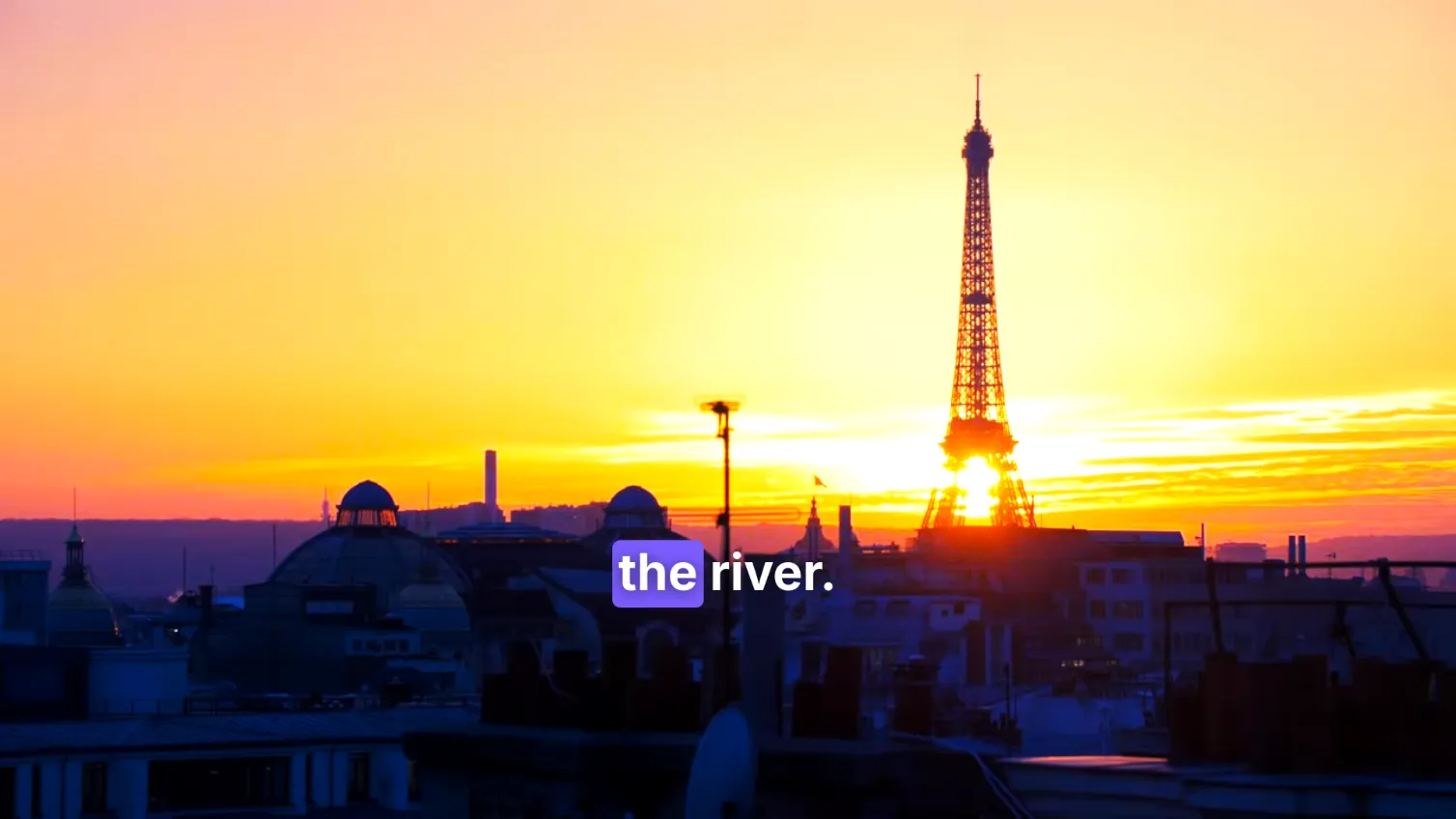
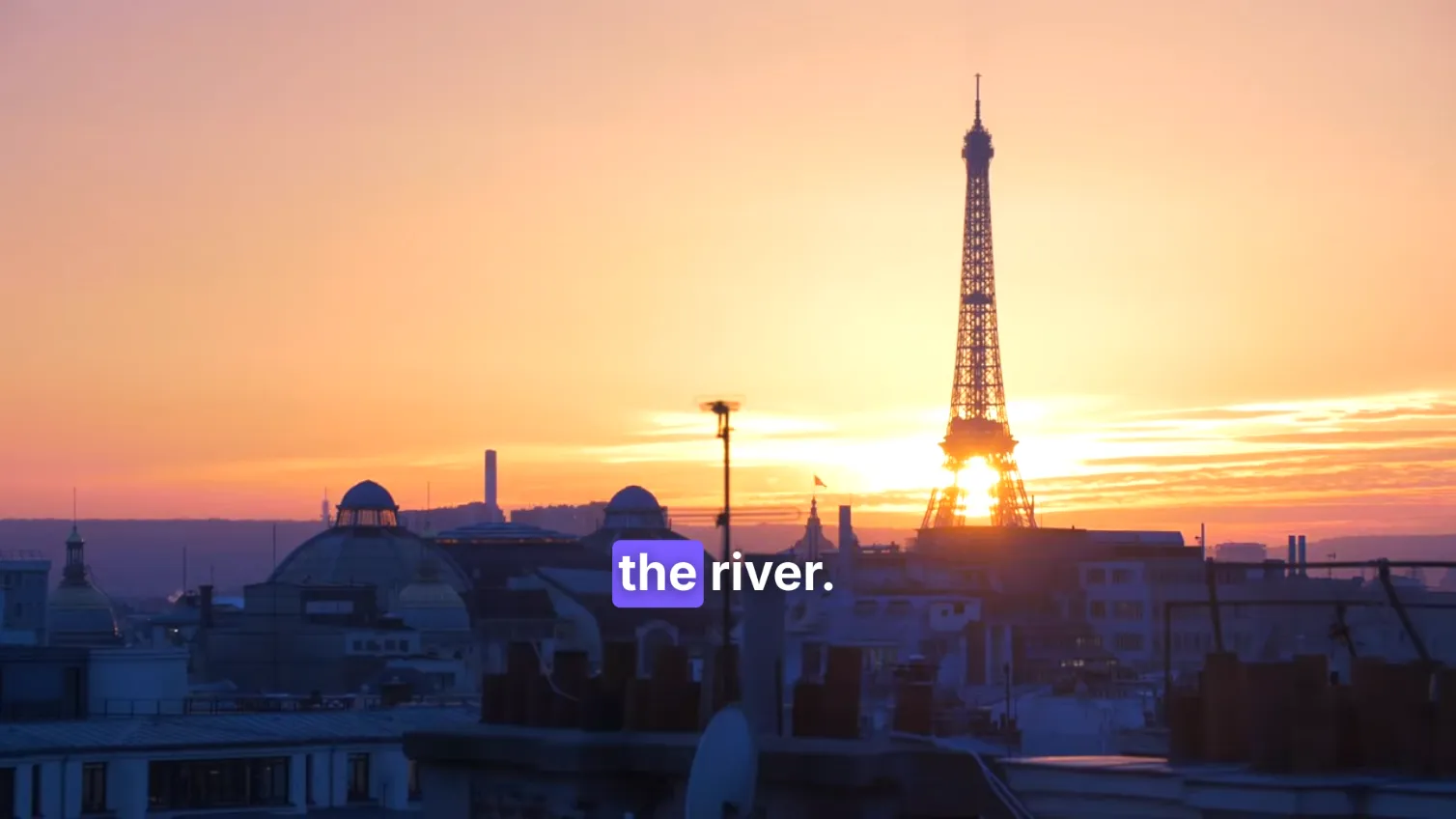
How to do it in Eigami
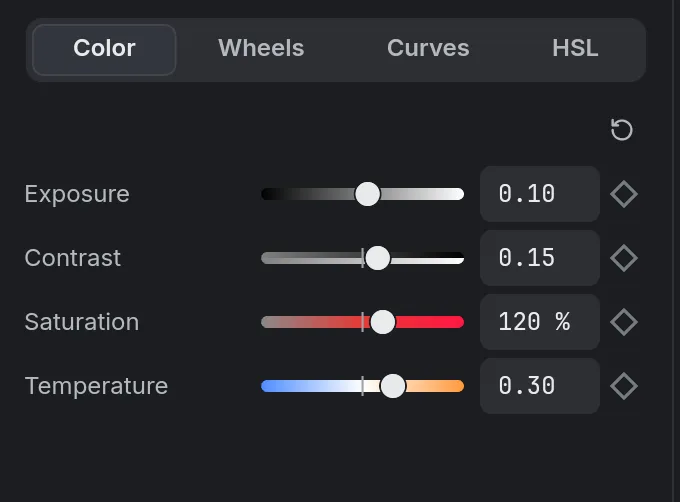
Select the clip, open the Adjust tab, and set Exposure, Contrast, Saturation and Temperature.
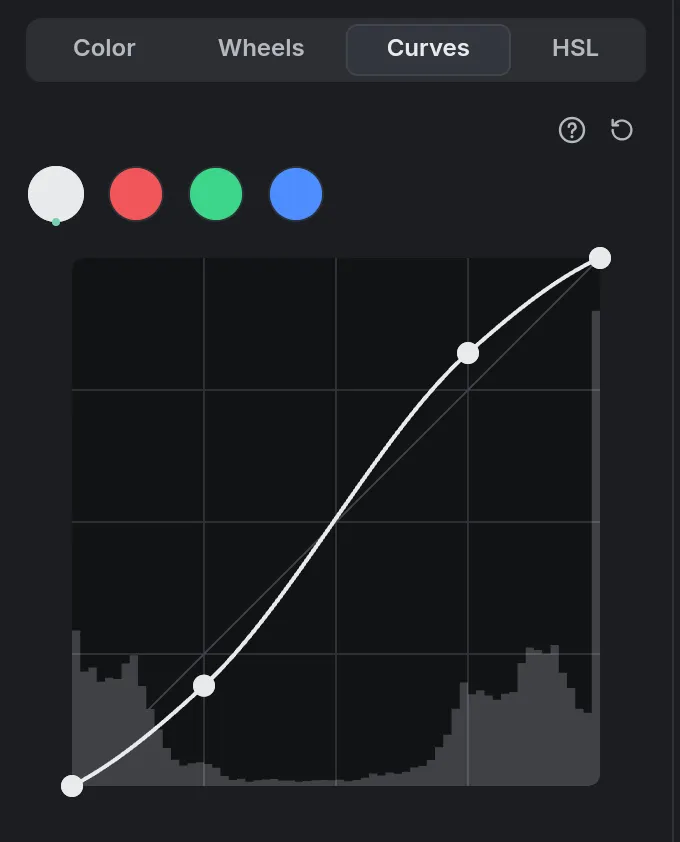
Shape the look with Curves, Wheels and HSL.
To make clips look alike, right-click the one that looks right and choose Use as color reference.
Select the others and choose Match color to the reference.
How it works
Wheels for each tone
Lift tints the shadows, Gamma the midtones, Gain the highlights and Offset everything. Each wheel’s Level makes that part brighter or darker.
Curves over the picture
Click a curve to add a point and drag it; a right click removes it. The frame’s histogram is drawn behind.
One color at a time
HSL changes the hue, saturation and lightness of eight colors, from red to magenta, one at a time. Grays are left alone.
What it needs
- Nothing to download: it is part of the editor.
What it doesn’t do
- No waveform or vectorscope: the curves show a histogram of the frame, nothing more.
- A grade acts on the whole clip: there are no color qualifiers or windows to grade one area.
- There is no HDR export.
Questions
Can I use my own LUTs?
Yes. Import a .cube file from the library’s Filters tab; a copy is kept in My LUTs for every project.
How do I give several clips the same grade?
Copy one clip’s attributes and paste its Color adjustments onto the others. Filters and LUTs can also be saved as a look.
Can I adjust a color match afterwards?
Yes. Match color sets each clip’s Gain and Offset wheels, so you can adjust them from there; Ctrl+Z undoes it.
How do I see the clip as it was filmed?
Hold the Compare button over the viewer, or press Shift+D, to see it without its color and filters.
Coming soon to Windows. Eigami is a free desktop video editor with no watermark. Pro, paid once, adds 4K exports and the tools that do the work for you, with AI on your computer. Free, with Pro paid once, through the Microsoft Store for Windows 10 and 11. The app never asks you to sign in. See what it does
Updated